Masonry
The masonry displays a list of cards whose media have different aspect ratios (document pages, illustrations, text lines, seals…) as justified rows, like the photo galleries of Google Photos or Flickr:
-
every row fills the whole width of the container;
-
all the media of a row have the same height;
-
every media is displayed entirely: nothing is cropped;
-
the cards keep their order, from left to right then from top to bottom.
It is pure CSS: no JavaScript is needed to compute the layout, and it adapts to any container width.
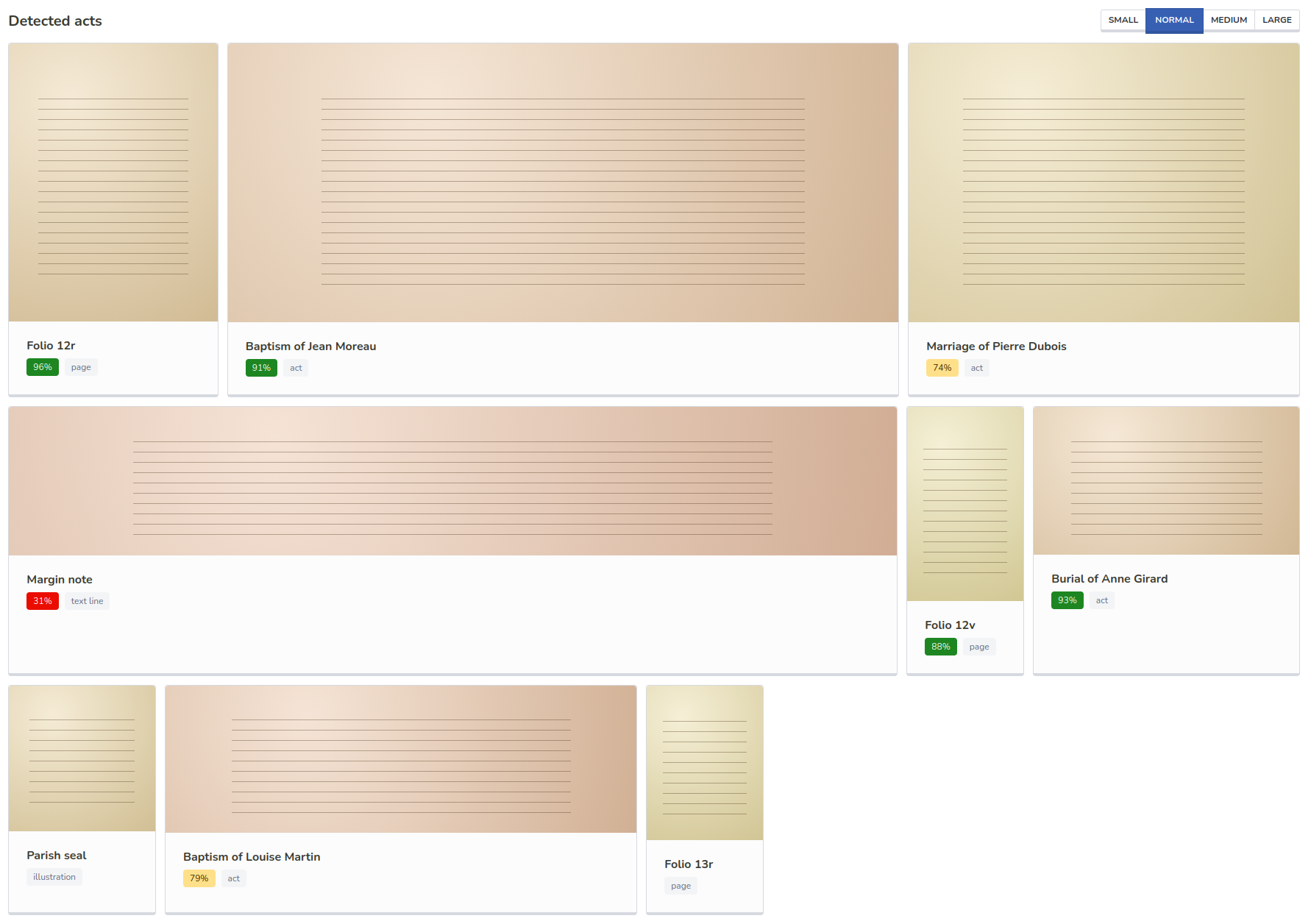
| See the masonry in context on the demo page, in both light and dark themes. |
Quick start
<div class="masonry">
  <div class="masonry-brick" style="--masonry-ratio: 0.75"> (1)
    <div class="card">
      <div class="card-image">
        <img src="folio-12r.jpg" alt="Folio 12r" loading="lazy">
      </div>
      <div class="card-content">
        <p class="title is-6">Folio 12r</p>
      </div>
    </div>
  </div>

  <div class="masonry-brick" style="--masonry-ratio: 2.4"> (2)
    <div class="card">
      <div class="card-image">
        <img src="baptism.jpg" alt="Baptism of Jean Moreau" loading="lazy">
      </div>
      <div class="card-content">
        <p class="title is-6">Baptism of Jean Moreau</p>
      </div>
    </div>
  </div>

  <!-- ...more bricks -->
</div>| 1 | A portrait page: 3 wide for 4 high, so its ratio is 3 / 4 = 0.75. |
| 2 | A landscape act, 2.4 times wider than high. |
Required markup
The masonry relies on a strict structure:
.masonry                      The container
└── .masonry-brick            One per item, direct child of .masonry, with its --masonry-ratio
    └── .card                 A Bulma card, direct child of the brick
        ├── .card-image
        │   └── img           The media, sized by the masonry
        └── .card-content     Optional: title, tags…
-
Bricks must be direct children of
.masonry. The masonry is a flex container: a wrapper element between them (a<template>root, a<form>, a component root<div>…) breaks the layout. -
Every brick needs its
--masonry-ratio: the width of its media divided by its height. It defaults to1(a square). -
The card fills the brick (
height: 100%), so all the cards of a row are as high as the highest one. -
Only
.card-image imgis sized by the masonry. Other content can be put in a brick, see Brick content and appearance.
Providing the ratio
The ratio is the key of the layout: it is used before the image is loaded, to compute the width of each brick.
CSS cannot read the size of an image, so it must come from your data.
Most of the time, the backend already knows it: image dimensions, the bounding box of an element polygon, IIIF info.json dimensions…
It must be a single decimal number with a dot: 1.333, not 4/3 nor 1,333.
In a Django template
Compute the ratio in Python, for example as a model property:
class Element(models.Model):
    width = models.PositiveIntegerField()
    height = models.PositiveIntegerField()

    @property
    def ratio(self):
        return self.width / self.height
In most cases, we uses iiif image servers, with bbox to get the information we need in the image.
In order to use the bbox and the rotation_angle to provide the ratio, you can do as follow :
class Element(models.Model):

    rotation_angle = models.SmallIntegerField(
        validators=[MinValueValidator(0), MaxValueValidator(359)],
        default=0,
        help_text="Clockwise rotation to apply to the image after cropping, in degrees.",
    )

    @property
    def bbox(self):
        [...]
        return bbox

    @property
    def thumbnail_aspect_ratio(self):
        """
        Width / height ratio of the IIIF image, once rotated.
        IIIF servers return the bounding box of the rotated crop.
        """
        if not self.bbox or not self.bbox.width or not self.bbox.height:
            return
        angle = math.radians(self.rotation_angle)
        cos, sin = abs(math.cos(angle)), abs(math.sin(angle))
        width = self.bbox.width * cos + self.bbox.height * sin
        height = self.bbox.width * sin + self.bbox.height * cos
        return round(width / height, 4)
Then render it with stringformat:
<div class="masonry">
  {% for element in elements %}
    <div class="masonry-brick" style="--masonry-ratio: {{ element.ratio|stringformat:'.3f' }}">
      <div class="card">
        <div class="card-image">
          <img src="{{ element.thumbnail_url }}" alt="{{ element.name }}" loading="lazy">
        </div>
        <div class="card-content">
          <p class="title is-6">{{ element.name }}</p>
        </div>
      </div>
    </div>
  {% endfor %}
</div>
Do not use the floatformat filter: it follows the active locale, and renders 1,333 in French, which is not a valid CSS number. stringformat is not localized.
|
In a Vue component
Vue accepts CSS variables in style bindings:
<template>
  <div class="masonry">
    <div
      v-for="element in elements"
      :key="element.id"
      class="masonry-brick"
      :style="{ '--masonry-ratio': element.width / element.height }"
    >
      <div class="card">
        <div class="card-image">
          <img :src="element.thumbnail" :alt="element.name" loading="lazy">
        </div>
        <div class="card-content">
          <p class="title is-6">{{ element.name }}</p>
        </div>
      </div>
    </div>
  </div>
</template>
If each brick is a component, make the .masonry-brick element the root of the component, so no wrapper ends up between the container and the bricks.
In plain JavaScript
const brick = document.createElement('div')
brick.className = 'masonry-brick'
brick.style.setProperty('--masonry-ratio', element.width / element.height)
When the ratio is unknown
As a last resort, the ratio can be set once each image is loaded:
document.querySelectorAll('.masonry-brick img').forEach((img) => {
  const setRatio = () => {
    img.closest('.masonry-brick').style.setProperty('--masonry-ratio', img.naturalWidth / img.naturalHeight)
  }
  if (img.complete && img.naturalWidth) setRatio()
  else img.addEventListener('load', setRatio, { once: true })
})
Avoid it when possible: every brick is first displayed as a square, then the whole layout jumps each time an image is loaded. With a ratio known in advance, the layout is final from the first paint, and images can be lazy-loaded without any jump.
How it works
The masonry is a wrapping flexbox, where the size of each brick is derived from its ratio. The core of it fits in two declarations:
.masonry {
  display: flex;
  flex-wrap: wrap;
}

.masonry > .masonry-brick {
  /* | grow                | shrink | base width                                          */
  flex: var(--masonry-ratio)  1       calc(var(--masonry-ratio) * var(--masonry-row-height));
}

.masonry-brick .card-image img {
  width: 100%;
  aspect-ratio: var(--masonry-ratio);
}
The browser then does all the work, in three steps:
-
Base width. Each brick starts with the width its media would have at the row height:
ratio × row height. A 0.75 page at a 200px row height starts 150px wide; a 2.4 act starts 480px wide. -
Filling the rows. The browser puts bricks on a row, in order, as long as their base widths fit. The first brick that does not fit starts a new row.
-
Justifying. The free space left at the end of each row is shared between its bricks proportionally to their ratio (
flex-grow). As each brick grows by the same factor as its ratio, all the media of the row grow by the same height: the row stays aligned, and fills the whole width.
Finally, the media use aspect-ratio to get their height from their width, so they are displayed at their real proportions.
Here is an example with a 1000px wide container and a 200px row height (gaps are ignored to keep numbers simple):
Bricks:  A ratio 1    B ratio 2.4    C ratio 1.4    D ratio 6
Base:    200px        480px          280px          1200px

Row 1: A + B + C = 960px fit, D does not.
       40px are left, shared by ratio (total 4.8): A +8px, B +20px, C +12px.

       ┌──────────┐┌────────────────────────┐┌──────────────┐
       │  A 208px ││        B 500px         ││   C 292px    │  every media is 208px high
       └──────────┘└────────────────────────┘└──────────────┘

Row 2: D is wider than the container, it is limited to 100%: 1000px wide, 167px high.
       ┌────────────────────────────────────────────────────┐
       │                     D 1000px                       │
       └────────────────────────────────────────────────────┘
So the row height is a minimum target: rows are usually a bit higher, by the share of free space each one gets.
The last row
The last row usually has a few bricks only. Justified like the others, they would be stretched into huge cards.
To avoid it, the masonry adds an invisible ::after element at the end, with a growth factor of 1000.
It takes nearly all the free space of the last row, so its bricks keep their base size and stay on the left.
Why not another layout?
| Approach | Issue |
|---|---|
CSS columns ( |
Items are ordered from top to bottom in each column: the reading order is lost, which is a problem for sorted or paginated lists, and for keyboard navigation. |
A grid of fixed size cells with |
Media are cropped: a text line or a narrow margin note becomes unreadable. |
A grid of fixed size cells with |
Lots of empty space around very wide or very high media. |
A JavaScript masonry library |
An extra dependency, layout jumps while images load, and the layout must be recomputed on every resize or content change. |
The justified rows keep the order, never crop, and only rely on CSS.
Controlling the size
Row height
The row height is the main setting: a lower row height gives smaller cards, and more of them per row.
| Class | Row height | Typical usage |
|---|---|---|
|
120px |
Dense overviews, many thumbnails. |
|
200px |
Default. |
|
280px |
|
|
360px |
Few items, where details of the media matter. |
For any other value, set the --masonry-row-height CSS variable on the .masonry element itself:
<div class="masonry" style="--masonry-row-height: 160px">Or with a class of your own, which also makes the height responsive:
.masonry.thumbnails {
  --masonry-row-height: 100px;
}

@media screen and (min-width: 1024px) {
  .masonry.thumbnails {
    --masonry-row-height: 180px;
  }
}
|
The row height can also be changed at runtime, for example with a size selector, by swapping the modifier class:
<div class="buttons has-addons are-small" id="masonry-sizes">
  <button class="button" data-size="is-small">Small</button>
  <button class="button is-selected is-link" data-size="">Normal</button>
  <button class="button" data-size="is-medium">Medium</button>
  <button class="button" data-size="is-large">Large</button>
</div>

<div class="masonry" id="gallery">...</div>

<script>
  const masonry = document.getElementById('gallery')
  document.querySelectorAll('#masonry-sizes [data-size]').forEach((button) => {
    button.addEventListener('click', () => {
      masonry.classList.remove('is-small', 'is-medium', 'is-large')
      if (button.dataset.size) masonry.classList.add(button.dataset.size)
    })
  })
</script>
Spacing between bricks
Bricks are separated by a 0.75rem gap, like Bulma columns. Override it with your own class:
.masonry.is-compact {
  gap: 0.25rem;
}
Like any .block in Bulma, the masonry has a bottom margin when it is not the last child of its parent.
Minimum width of a brick
A brick is never narrower than 10rem, so that the text of its card stays readable even for a very narrow media.
It can be changed with a selector at least as specific as the theme’s:
.masonry.thumbnails > .masonry-brick {
  min-width: 6rem;
}
Limiting extreme ratios
Very wide (a text line, ratio 20) or very narrow (a margin note, ratio 0.1) media degrade the layout, see Limitations. As the ratio only drives the layout, you can clamp it in your data, for example between 0.5 and 4:
@property
def masonry_ratio(self):
    return min(max(self.width / self.height, 0.5), 4)
The media is then displayed in a box of the clamped ratio, and object-fit: contain fits it entirely inside, with empty space on the sides.
Brick content and appearance
The cards are regular Bulma cards: add a card-content, a card-footer, tags, buttons… as usual.
The content below the image does not change the width of the bricks, only the height of the cards.
Within a row, all the cards share the height of the highest one, so prefer short contents of similar length (a title and a few tags) to keep rows tidy.
Long titles wrap, as the theme breaks very long words in card-content.
The media is displayed with object-fit: contain: if its box does not match its proportions (unknown or clamped ratio), the whole media is still visible, centered.
To give this empty space a background, style the card-image:
.masonry .card-image {
  background-color: var(--bulma-scheme-main-ter);
}
A brick can contain something else than a card, for example a plain image or a figure.
The width of the brick is still computed, but its content must be sized by your own styles:
.masonry-brick > img {
  display: block;
  width: 100%;
  aspect-ratio: var(--masonry-ratio);
  object-fit: contain;
}Limitations
The masonry is a trade-off: it keeps the order and never crops, but some cases are handled less gracefully.
- Rows can be much higher than the row height
-
The free space of a row is at most the width of the next brick, which did not fit. When only a few bricks fit on a row, this free space is shared between few bricks, and they grow a lot. For example, in a 1000px container with a 200px row height, two square bricks followed by a ratio 6 brick: the wide brick goes to the next row, and the two square ones share 600px of free space, growing to 500px high, 2.5 times the row height.
To limit it, media are never displayed higher than twice the row height: beyond that, they are centered in their card. To avoid it, lower the row height so that more bricks fit on each row (aim for at least four), or clamp the extreme ratios.
- Very wide media are lower than the others
-
A brick is never wider than its container. A media wider than the whole row (a text line, a panorama) takes a row alone, and is displayed lower than the row height.
- Very narrow media do not align
-
A narrow media whose brick is widened to the
10remminimum width would be higher than the rest of its row: it is limited to twice the row height, and centered. The media of that row then do not share the same height anymore. - Small screens
-
On a phone, only one or two bricks fit on each row, and each brick stretches to fill it: the masonry turns into a list of large cards. Use a lower row height on small screens (see the responsive example above) to keep several bricks per row.
- The ratio must be known in advance
-
See Providing the ratio: without it, every brick is a square until its ratio is set.
- The order is by rows only
-
Items are ordered from left to right, then from top to bottom. The layout cannot place an item at a precise position, or make an item span several rows.
- Only the last row is left-aligned
-
All the rows but the last one are justified to the full width. It is not possible to leave a row partially empty, for example to start a new group of items on a new row: use a separate
.masonryper group instead.
Full example
<div class="level">
  <div class="level-left">
    <div class="level-item">
      <h2 class="title is-5">Detected acts</h2>
    </div>
  </div>
</div>

<div class="masonry is-small">
  <div class="masonry-brick" style="--masonry-ratio: 0.75">
    <div class="card">
      <div class="card-image">
        <img src="folio-12r.jpg" alt="Folio 12r" loading="lazy">
      </div>
      <div class="card-content">
        <p class="title is-6 mb-2">Folio 12r</p>
        <div class="tags">
          <span class="tag is-success">96%</span>
          <span class="tag">page</span>
        </div>
      </div>
    </div>
  </div>

  <div class="masonry-brick" style="--masonry-ratio: 2.4">
    <div class="card">
      <div class="card-image">
        <img src="baptism-jean-moreau.jpg" alt="Baptism of Jean Moreau" loading="lazy">
      </div>
      <div class="card-content">
        <p class="title is-6 mb-2">Baptism of Jean Moreau</p>
        <div class="tags">
          <span class="tag is-success">91%</span>
          <span class="tag">act</span>
        </div>
      </div>
    </div>
  </div>

  <div class="masonry-brick" style="--masonry-ratio: 6">
    <div class="card">
      <div class="card-image">
        <img src="margin-note.jpg" alt="Margin note" loading="lazy">
      </div>
      <div class="card-content">
        <p class="title is-6 mb-2">Margin note</p>
        <div class="tags">
          <span class="tag is-danger">31%</span>
          <span class="tag">text line</span>
        </div>
      </div>
    </div>
  </div>
</div>
The "Detected acts" section of demo.html shows a complete masonry, with a size selector.