Manage clusters
Once you have generated clusters, the Manage clusters page lets you review them, reorganize their elements and clean up cluster runs before exporting.
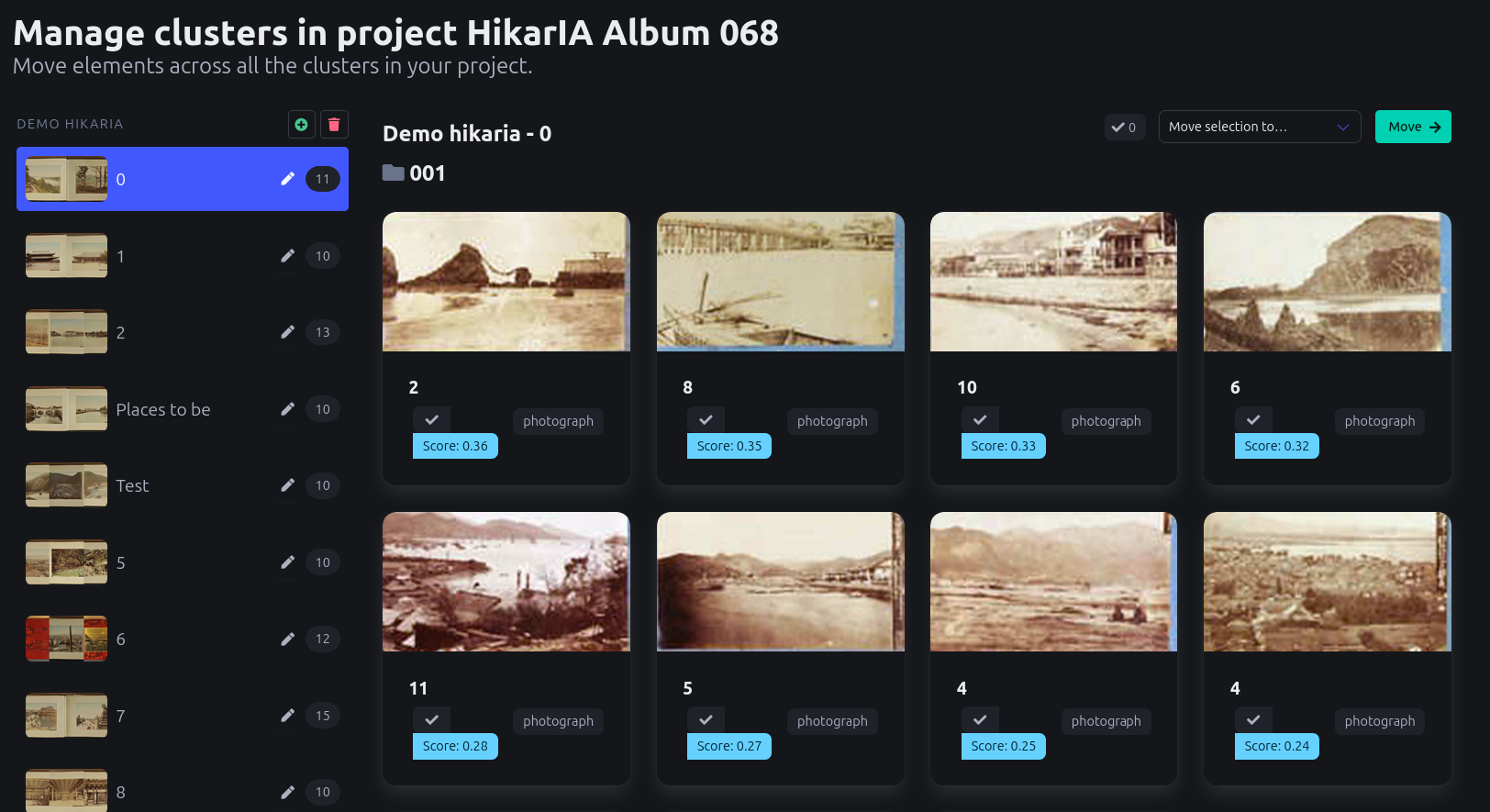
Layout
The page is split in two parts:
-
on the left, every cluster run of the project is listed, each with its clusters underneath, shown with a thumbnail, their label and their number of elements,
-
on the right, the elements of the currently selected cluster are displayed, grouped by their original folder.
Clicking on a cluster in the left panel loads its elements on the right.
Cluster runs
A cluster run is a group of clusters generated together, through a single cluster generation. Next to its name, two actions are available:
-
the green + icon adds a new, empty cluster to that run,
-
the red trash icon deletes the whole cluster run.
| Deleting a cluster run removes all its clusters. The elements that were part of them are not deleted, only unlinked from any cluster. This action is irreversible. |
Editing a cluster
Every cluster can be renamed and described by clicking the pencil icon next to it, in the left panel. This opens a modal where you can edit its label and description, both displayed above its elements on the right.
Moving elements between clusters
The elements of a cluster are displayed 20 at a time, grouped by their original folder. Each element card shows its type as a tag (such as page or line), and its Score tag, when present, describes the distance between the element and the cluster core elements.
Each element can be selected by clicking the checkmark on its thumbnail. Once one or more elements are selected, a counter appears above the elements list, along with a dropdown listing every other cluster of the project, including clusters from other cluster runs. Pick a target cluster and click Move to reassign the selected elements to it.
Your selection is kept while you browse through the pages of a single cluster, but is cleared as soon as you select another cluster. You can also clear it early by clicking on the selection counter.
| After a move, the thumbnails of both the source and target clusters are regenerated in the background, so they may take a moment to reflect the change. |
Next step
Once you have moderated your clusters, you can export them.