Use process templates
Some complex Machine Learning processes can be created using multiple workers. When creating a process, you need to add each worker to your process and setup dependencies. This step presents two drawbacks:
-
It is time-consuming: some processes have to be run periodically with the same workers each time, and might include multiple workers, with dependencies and worker configurations.
-
It is a source of errors: the user may forget a dependency, a worker, or a worker configuration parameter.
Once you have set up your complete process, you can use a process template to save it and avoid having to configure it all over again.
A template is a saved Machine Learning process. The template saves not only the workers from the process, but also the selected worker versions, worker configurations if they were set up, model versions, and the dependencies between the workers.
Create a process template
Process templates can only be created from Workers or Dataset processes, and have to contain at least one worker. There are two ways to create process templates.
From the process configuration page
You can create process templates in almost the same way as creating a Process. Following the steps described in the process creation section, you first obtain a process with workers.
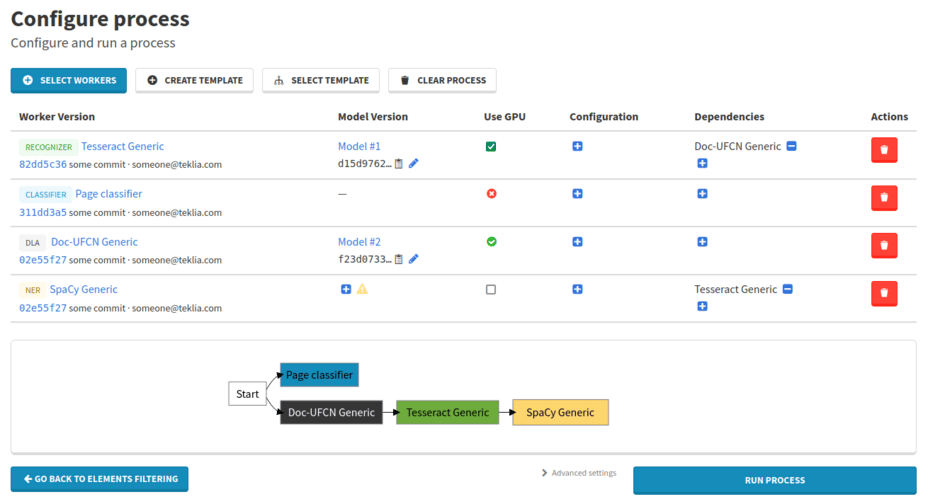
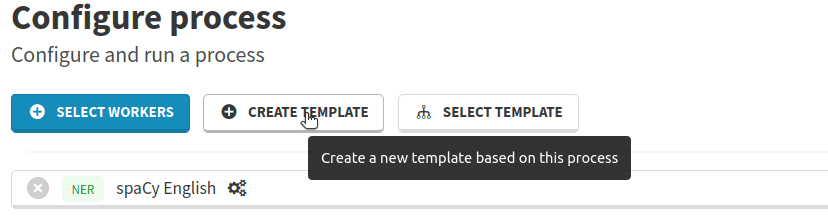
Then click on the Create template button, above the list of workers, to open the template creation modal.
From the process status page
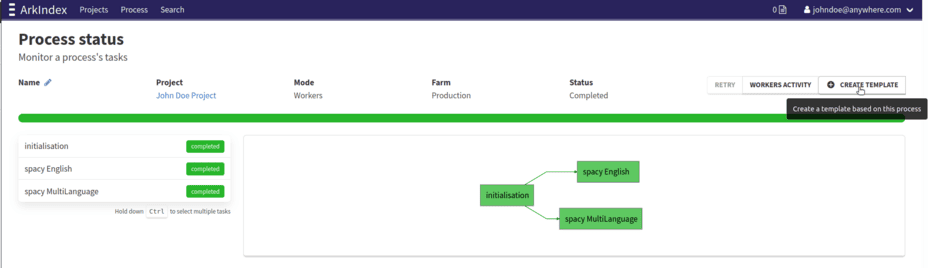
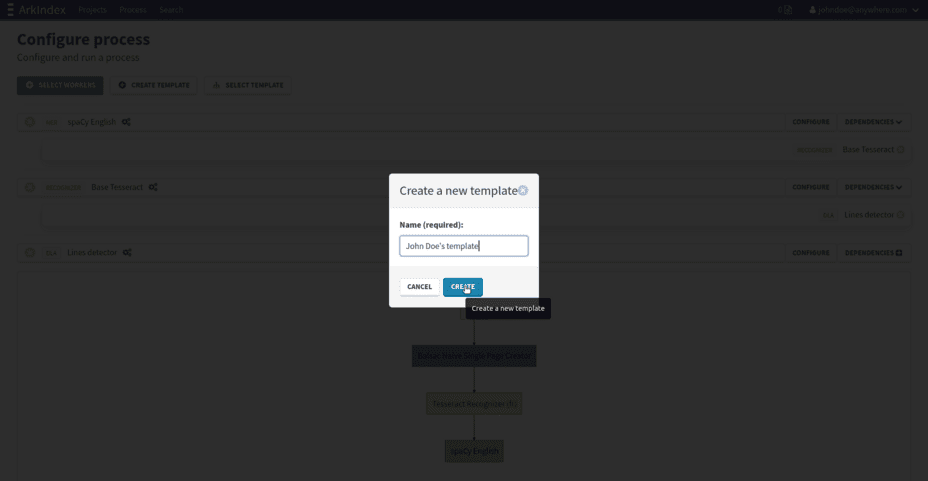
If you didn’t save your process during the configuration step, you can still do it after running it, from the process status page. It will save a template with the workers, versions, configurations and dependencies with which the now completed process was initially configured. Click on the button to open the template creation modal.
Browsing templates
You can see the templates available to you from the Process page on Arkindex:
-
In the navigation bar, click on Process.
-
Process templates are not displayed by default on this page. You can use the filters to display them.
Use the Mode selection dropdown menu to select the Template mode.
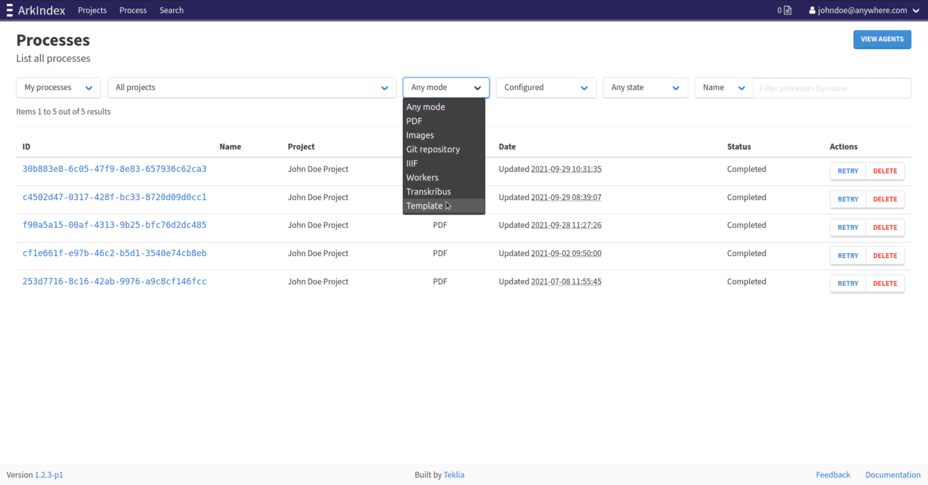 Figure 5. Filter processes to keep those with mode Template
 -
The process list is updated and only process templates are displayed.
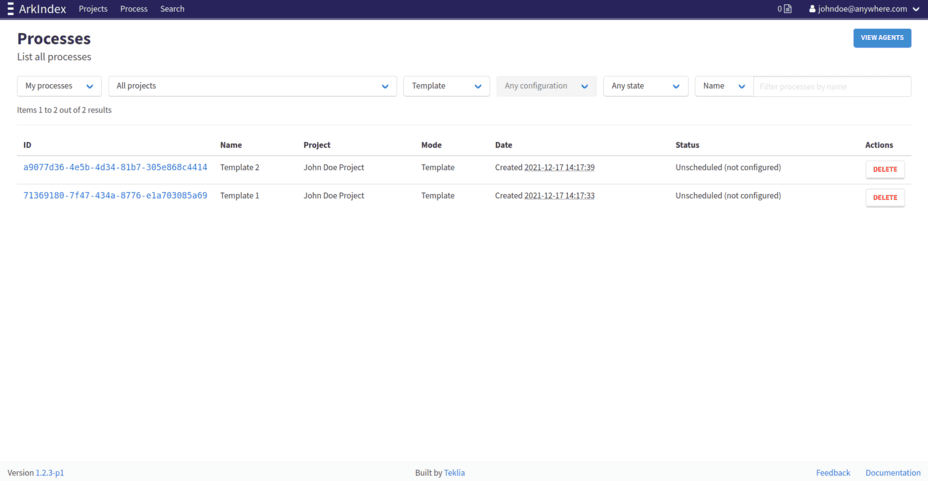 Figure 6. List available templates
Template details
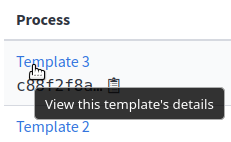
You can look at the workers composing a template, their details and dependencies, from the Process list page, using the filters to display templates. First you have to find the template you wish to examine in the list. To view a template’s details, click on its name.
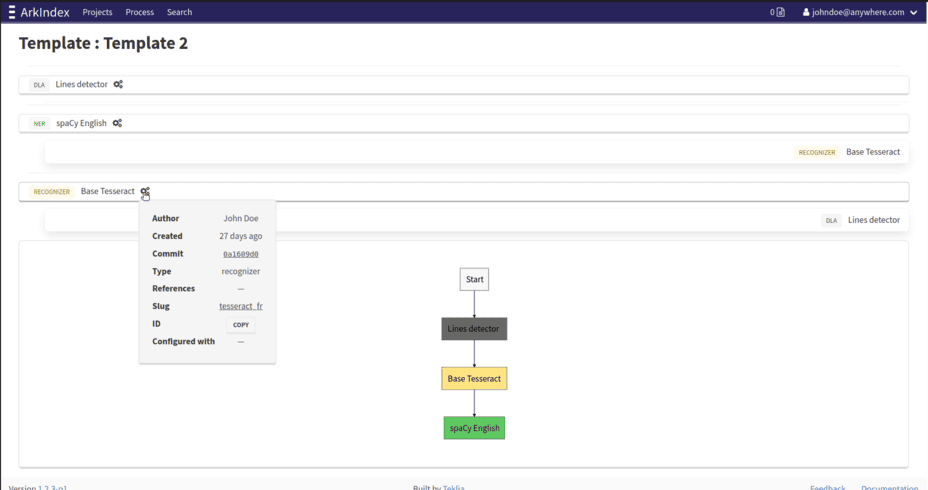
This opens the same configuration page as for a normal process, listing the workers in the template. You can edit the template in the same way you would configure a process.
| Editing a template will not update any process that has already applied this template. |
Use a template
You can use existing process templates when configuring a process. After the elements selection step, click the Select template button on the process configuration page.
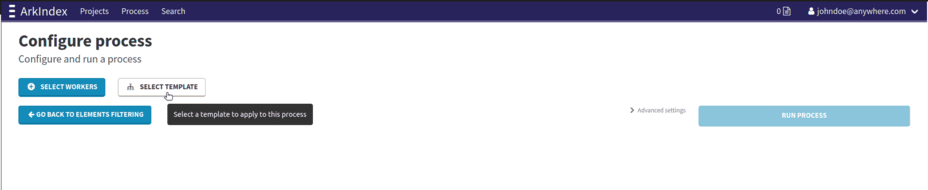
The template selection modal opens and the list of available templates is displayed in the column on the left. When selecting a template from the template selection modal, its details are displayed on the right as shown on the figure below.
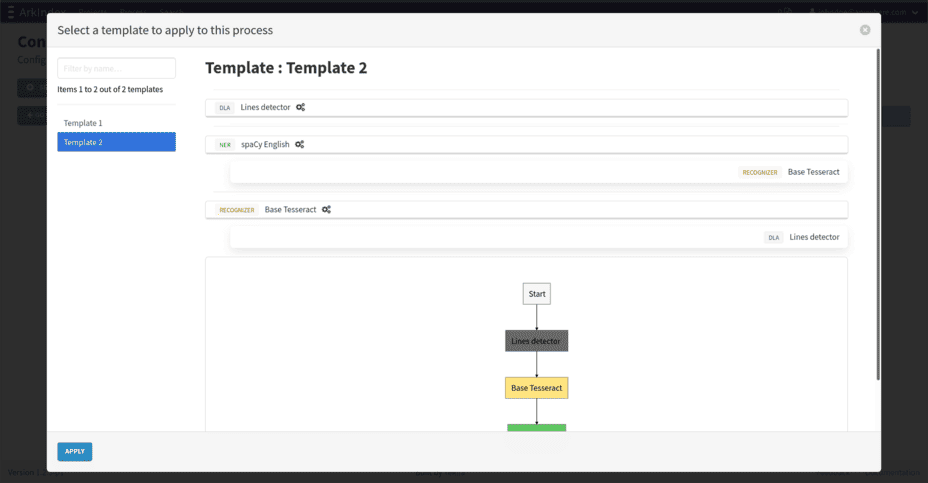
Once you have selected the desired template, click the Apply button on the bottom-left corner of the modal.
Your new process is now configured with the workers, versions, configurations and dependencies of the chosen template.
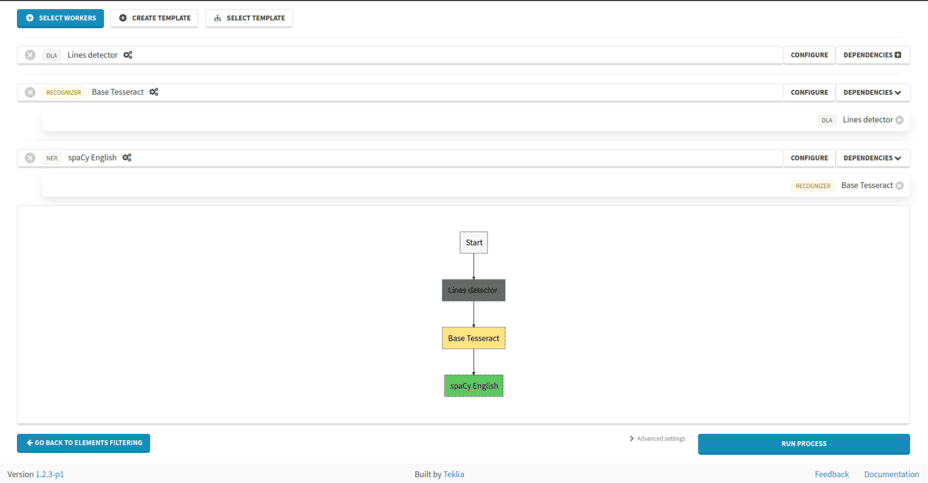
You can then add more workers, create a new template from these changes following the instructions from the previous section, or run the process.
Template rights
Templates are processes in a Template mode, and follow the access rights rules defined in the processes rights section.
To use a template, a user must also have the execution rights for each worker included in the template.
To share a template with another user, you need to:
-
give the user Guest (or higher) access to the
Templateprocess, -
give the user Contributor (or higher) access to each worker used in the template.