Classification
A classification links an existing Machine Learning class to an element, with a confidence score.
It can also be used for manual classification by human annotators.
Rules
-
Machine learning classes can be configured by instance administrators, project administrators, or workers.
-
A classification has a
confidencescore, set between 0.0 and 1.0 (percentage). It defaults to 1.0 when the classification is created by a human (we always trust human annotators)
Web interface
Classes and classifications can be viewed and modified on multiple pages of the web interface.
Element lists
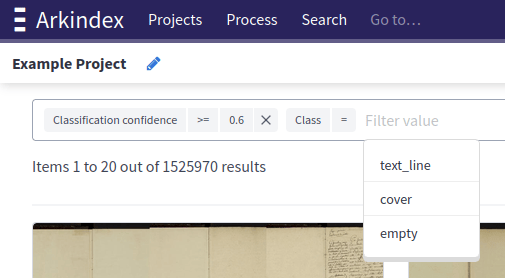
When browsing elements, you can apply classification filters using the filter bar:
-
Class name: Select elements that have a specific ML class.
-
Classification confidence: Select elements that have a classification with a confidence greater than, equal to, or less than a specified threshold.
When those filters are used together, then only elements that have a classification that matches all the specified criteria will be selected. An element with multiple classifications that match only one of each criteria would not be displayed.
Element details
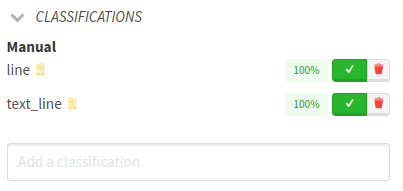
When viewing the details of a single element, the panel on the right side has a Classifications section where you can:
-
View all current classifications, grouped by worker, or Manual (created by a human annotator)
-
Moderate the classifications (either validate or reject)
-
Add a new classification (which will then appear in the Manual section, and already validated)
You cannot create a new Machine Learning class from this interface, but you can apply an existing one (provided it’s not already applied).
Class management
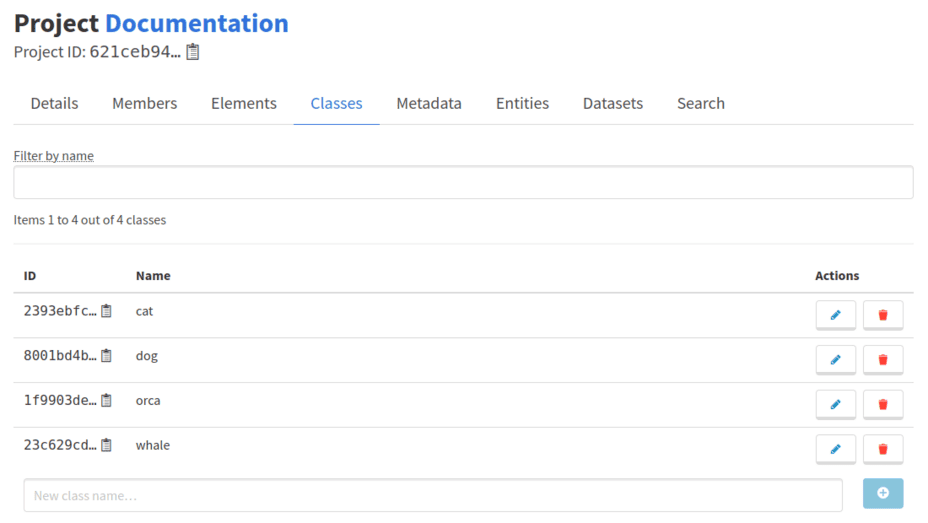
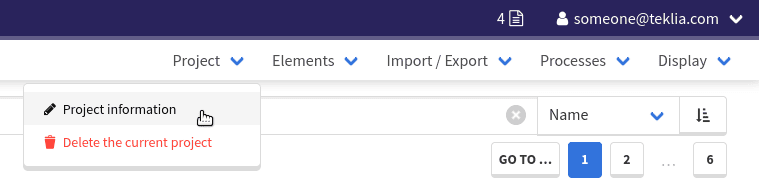
Classes can be managed by project administrators by going to Project information under the Project menu in a project, then going to the Classes tab.

From the class management page, it is possible to add, rename and delete classes. Classes can only be deleted if they are not used by any classification on any element.